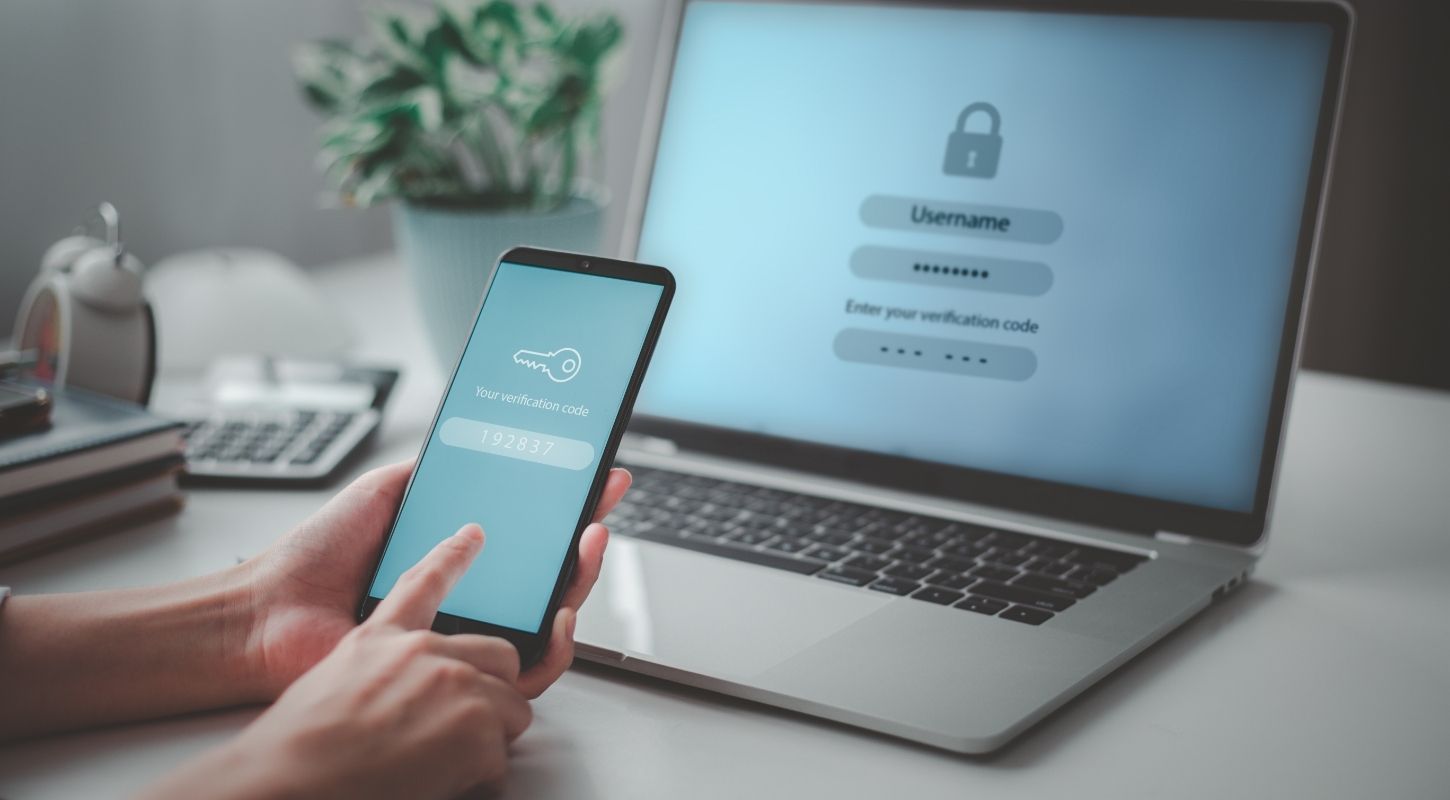
Passwords alone aren’t enough anymore. To truly keep your accounts safe from data breaches, you need an OTP authenticator app acting as your digital bodyguard.
In this guide, we break down the top list of OTP authenticator apps for 2026 to help you quickly find the perfect, easy-to-use security match.
What Exactly is an OTP Authenticator App?
OTP (One-Time Password) authenticator app just like a constantly changing lock on your accounts. Every 30 seconds, it generates a unique 6-digit code that only you can access. Even if someone steals your password, they can’t get in without that code.
Unlike SMS codes (which can be intercepted), authenticator apps work offline and keep your codes secure on your device. They’re the gold standard for two-factor authentication (2FA), and most major platforms—from Google to Instagram—support them.
Most are completely free and take less than 5 minutes to set up.
Top 10 OTP Authenticator Apps for 2026
1. 2FAS Authenticator
Platforms: iOS, Android
Price: Free
Open Source: Yes
If you want powerful features without the complexity, 2FAS is your winner. It’s packed with thoughtful touches like the ability to upload QR code screenshots (super handy when you can’t scan directly), Apple Watch integration, and organized categories for your codes.
Why we love it: It’s genuinely free with no premium upsells, has encrypted cloud backup, and the interface feels modern without being confusing. Perfect for both beginners and power users.
Best for: Anyone who wants the best free option without compromises.
2. Google Authenticator
Platforms: iOS, Android
Price: Free
Open Source: No
Google Authenticator is like the Toyota Corolla of authenticator apps—reliable, straightforward, and gets the job done. The 2024 update finally added cloud backup, which was a game-changer.
Pros: Dead simple interface, automatic Google account sync, trusted brand C
ons: Limited features compared to competitors, no biometric lock option
Best for: People who want something familiar and don’t need bells and whistles.
3. Microsoft Authenticator
Platforms: iOS, Android
Price: Free
Open Source: No
If you live in the Microsoft ecosystem (Outlook, Teams, Azure), this is a no-brainer. It goes beyond just codes, offering passwordless login and push notifications for approving sign-ins.
Pros: Seamless Microsoft integration, enterprise-grade security, autofill support
Cons: Can feel bloated if you don’t use Microsoft services, data used for service improvement
Best for: Windows users and business professionals in Microsoft-heavy workplaces.
4. Authy
Platforms: iOS, Android, Desktop (Windows, Mac, Linux)
Price: Free
Open Source: No
Authy’s superpower is syncing your codes across unlimited devices with end-to-end encryption. Got a new phone? Your codes transfer instantly.
Pros: Multi-device magic, encrypted cloud backup, desktop apps
Cons: Requires phone number to register, owned by Twilio (some privacy concerns)
Best for: People who juggle multiple devices or upgrade phones frequently.
5. Bitwarden Authenticator
Platforms: iOS, Android
Price: Free
Open Source: Yes
From the trusted password manager comes a standalone authenticator that’s completely open-source and brutally honest about data collection (spoiler: they collect almost nothing).
Pros: Total transparency, clean interface, integrates with Bitwarden password manager
Cons: Fewer features than competitors, relatively new
Best for: Privacy-conscious users who want to verify exactly what’s happening with their data.
6. Duo Mobile
Platforms: iOS, Android
Price: Free (personal), Paid plans for business
Open Source: No
Duo is the heavyweight champion of enterprise security. It’s used by universities, corporations, and government agencies for good reason—push notifications, biometric verification, and robust admin controls.
Pros: Enterprise-grade security, easy approval process, trusted by institutions
Cons: Overkill for personal use, premium features locked behind business plans
Best for: Business users or anyone whose workplace uses Duo.
7. Ente Auth
Platforms: iOS, Android, Desktop
Price: Free
Open Source: Yes
Ente Auth is what happens when privacy nerds build an authenticator. Everything is end-to-end encrypted, the code is open-source, and they offer offline encrypted backups.
Pros: Military-grade privacy, beautiful interface, cross-platform sync
Cons: Relatively new, smaller community
Best for: Anyone who takes privacy seriously and wants zero compromises.
8. Aegis Authenticator
Platforms: Android only
Price: Free
Open Source: Yes
Android users, this one’s for you. Aegis is a feature-packed powerhouse with encrypted vaults, custom icons, and granular import/export options.
Pros: Highly customizable, encrypted local backups, completely free
Cons: Android-only (sorry, iPhone users)
Best for: Android enthusiasts who love tinkering with settings.
9. Stratum Authenticator
Platforms: iOS, Android
Price: Free
Open Source: No
PCMag’s Editor’s Choice for minimal data collection. Stratum doesn’t ask for email, phone number, or personal info—just install and go.
Pros: Privacy-first design, simple setup, no account required
Cons: Limited features, smaller user base
Best for: Minimalists who want zero-friction security.
10. LastPass Authenticator
Platforms: iOS, Android
Price: Free
Open Source: No
If you’re already using LastPass for passwords, their authenticator integrates beautifully. One-tap approval and automatic backup make life easier.
Pros: LastPass integration, one-tap verification, automatic backup
Cons: LastPass’s past security issues raise concerns, requires account
Best for: Existing LastPass users who want everything in one ecosystem.
5 Essential Security Tips for Using Authenticator Apps
-
Enable Biometric Lock Immediately Don’t skip this step. If someone grabs your phone, face/fingerprint lock keeps them out of your authenticator.
-
Save Your Recovery Codes When adding accounts, save the backup codes somewhere secure (not on your phone). Think password manager or locked drawer.
-
Set Up Cloud Backup (If Available) Lost phones happen. Apps like 2FAS and Google Authenticator offer encrypted cloud backup—use it.
-
Never Screenshot QR Codes Screenshots live in your photo library where apps and cloud services can access them. Delete immediately if you do.
-
Test Before You Log Out After adding 2FA to an account, test the code BEFORE logging out to ensure it works. Trust us on this one.
Here’s something most people don’t think about: authenticator apps protect your login, but what about the phone number you used to sign up?
Every time you register for a service using your real number, you’re creating a privacy risk. Data breaches happen, and suddenly your personal number is on spam lists or worse.
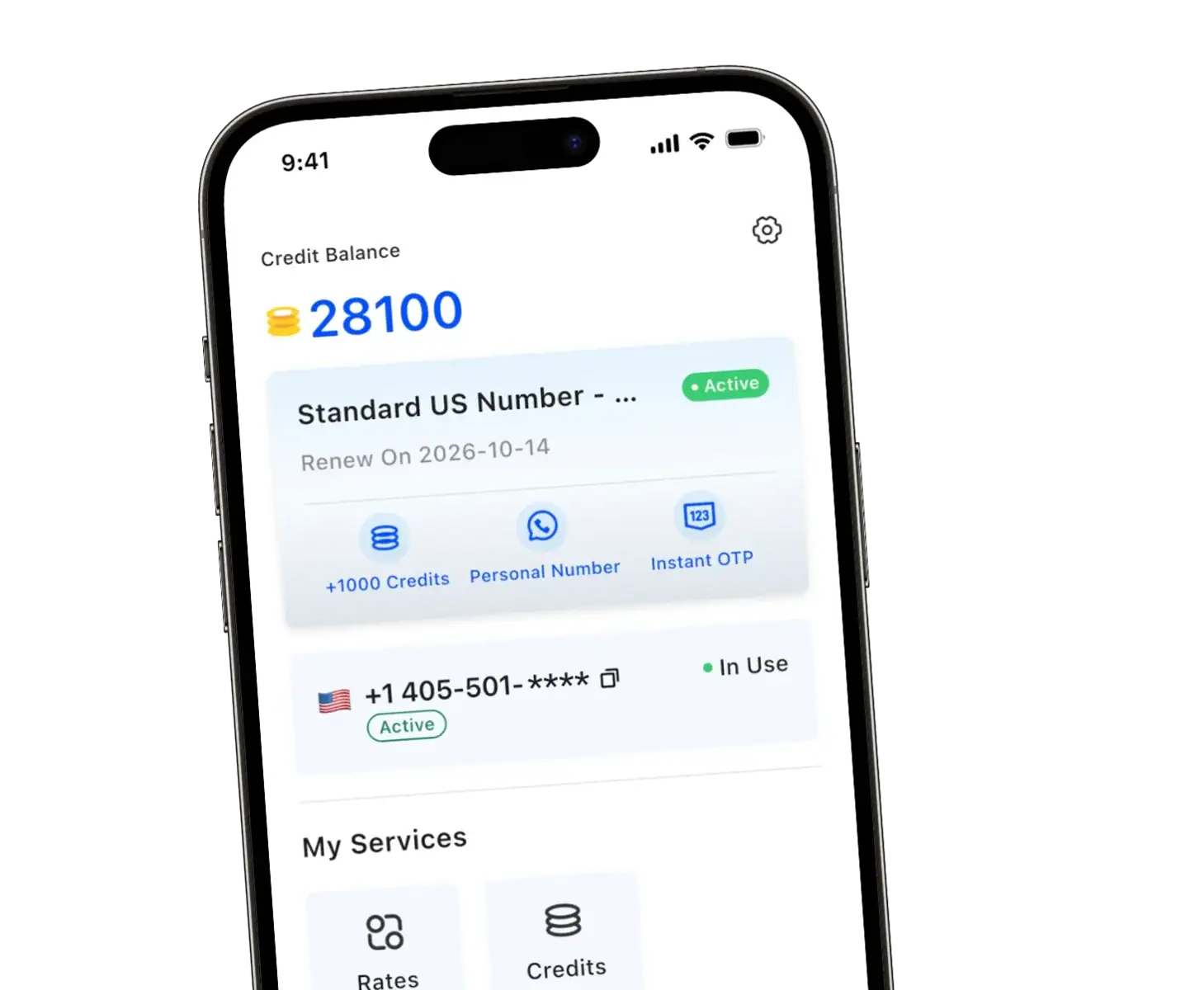
This is where TrueNumber comes in. Get a secure, temporary second phone number for:
✅ Signing up for new apps and services
✅ Social media accounts you want to keep separate
✅ AI tool registrations that require phone verification
✅ Business communications separate from personal
✅ Travel and international verification
No contracts, no SIM card needed—set up in 60 seconds.
Ready to level up your account security? Try TrueNumber for private phone verification and keep your real number safe from the digital wild west.
Frequently Asked Questions (FAQs)
Q: Are OTP authenticator apps free?
Most high-quality authenticator apps are completely free. While some enterprise solutions (like Duo) offer paid tiers for advanced business management, the best personal-use apps—such as 2FAS, Google Authenticator, and Aegis—provide all essential features at no cost.
Q: Can I use the same authenticator app on multiple devices?
It depends on the app. Apps like Authy and Microsoft Authenticator offer built-in cloud sync for seamless multi-device usage. For others, you may need to export/import your accounts via encrypted QR code backups.
Q: Can authenticator apps be hacked?
Authenticators are far more secure than SMS. The most common “hacks” occur if someone gains physical access to your unlocked phone. Always enable the app’s internal biometric lock (FaceID/Fingerprint) to prevent unauthorized access.
Q: What’s the difference between OTP and 2FA?
Think of 2FA (Two-Factor Authentication) as the process of requiring two proofs of identity. OTP (One-Time Password) is the method used for that second proof—a temporary code that expires after 30-60 seconds.
Q: Do I need an authenticator app if I have a password manager?
Yes. A password manager stores your credentials, but 2FA (via an authenticator) provides a separate layer of security. If your password is leaked, the authenticator app stops an attacker from entering your account.
Q: How many accounts can I add to an authenticator app?
Most apps have no strict limit on the number of accounts you can add. You can typically manage dozens, or even hundreds, of 2FA tokens within a single app.
Q: Can I backup my authenticator codes?
Yes, but methods vary. Some apps offer automatic encrypted cloud backups (2FAS, Authy, Google). Others allow you to manually export your accounts to an encrypted file or QR code, which you should store in a secure location, like a password-protected vault.